¶ .NET 10.0 ~ C# 14.0 ~
File-based Apps
2025年11月11日リリースの .NET 10 以降から、ソリューションやプロジェクトファイルを用意することなく、Visual Studio や VS Code の C# 拡張機能を入れていない環境でも、たった 1個の C# ソースコードファイルから、C# .NET プログラムをその場で即時ビルド&即時実行することができる機能 File-based Apps(ファイルベースアプリ)が追加されました。
¶ 前提条件の確認
.NET SDK の 10 以降が必要です。
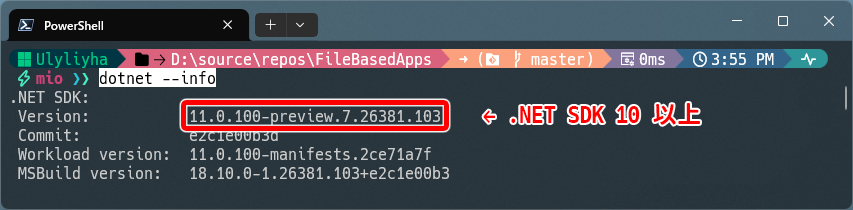
dotnet --info コマンドで、インストールされている .NET SDK のバージョンを確認してみましょう。
¶ Getting Started (始めてみましょう!)
¶ Hello, World!
「Hello, World!」と標準出力されるコンソールアプリを、たった1つのファイルだけで作って実行してみます。
- 新規ファイルを作成します。
$> touch HelloWorld.cs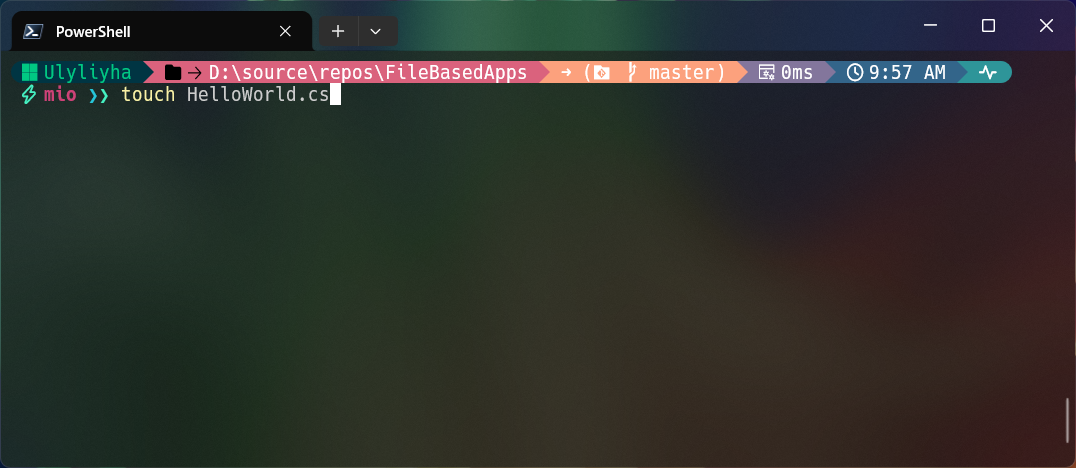
- プログラムソースコードを記述していきます。
#!/usr/bin/env dotnet
Console.WriteLine("Hello, World!");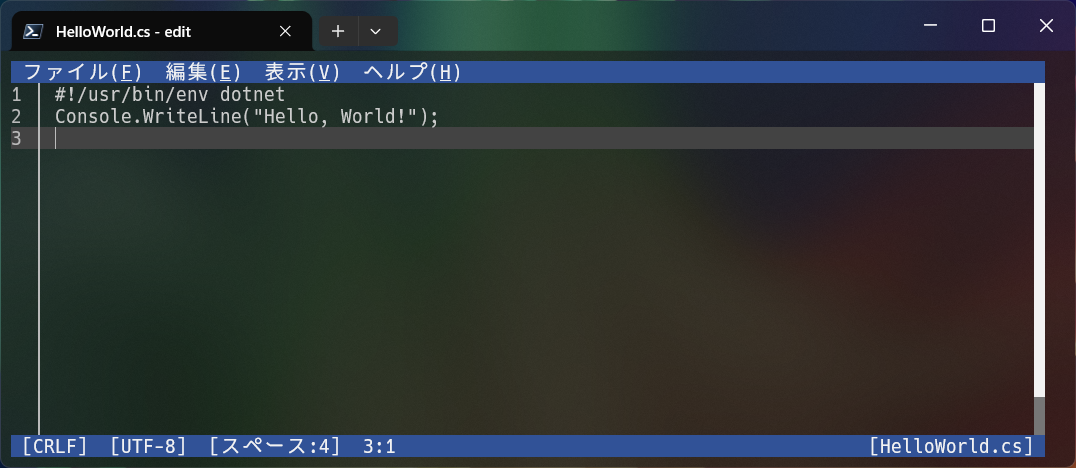
- 現在フォルダ内には、C#ソースコードを記述した、1つのファイルがあるだけの状態です。
$> ls -la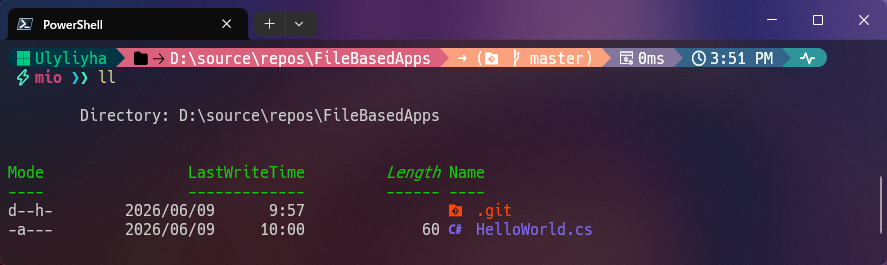
- あとは、(Windows 環境では)
dotnet ファイル名で実行可能です。
※裏でコンパイルされて自動で実行まで行われます。
※macOS や UNIX系、Linux 環境では、シェバンを記述しているので./ファイル名だけで実行可能です。######## Windows 環境 ######## $> dotnet HelloWorld.cs ######## macOS, UNIX系, Linux 環境 ######## $> ./HelloWorld.cs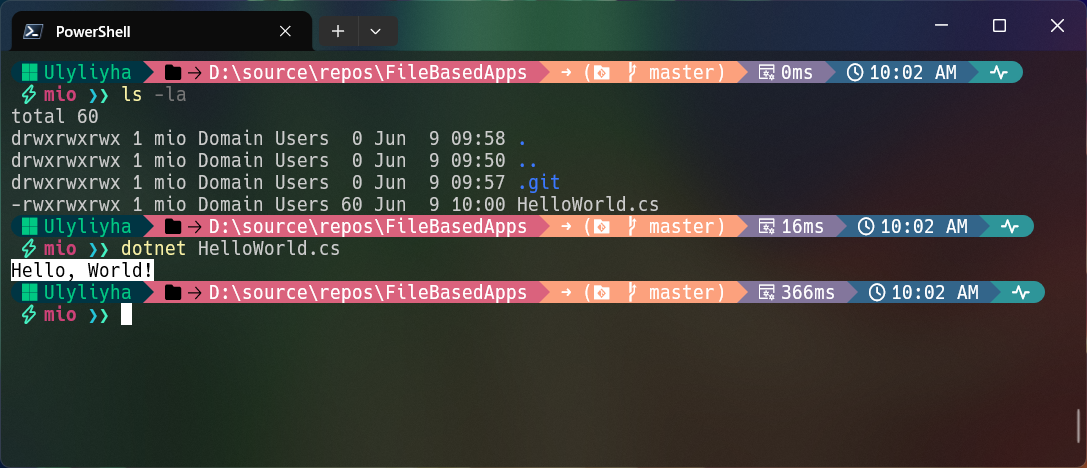
- その場でコンパイルされ、そのままプログラムの実行結果が出力されます。

¶ シバン/シェバン
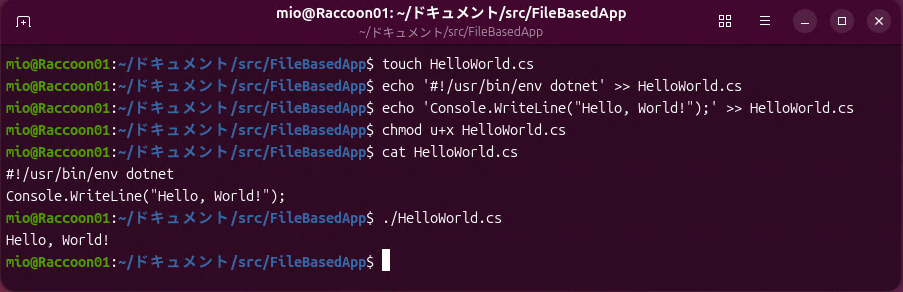
shebang (シバン/シェバン) を、ファイルの最先頭行に記述することで、
macOS や UNIX 系、Linux での シェル から、直接キックすることができます。
まるで、あたかも スクリプト(インタプリタ系言語のスクリプト)の実行 みたいな使用感となります。
¶ ファイルへのshebangの記述内容
#!/usr/bin/env dotnet
¶ ファイルへ実行権限の付与
$> chmod u+x ファイル名.cs
¶ ファイルを直接実行
$> ./ファイル名.cs
¶ ▽ Linuxでの例
¶ ディレクティブ
ファイルの最先頭行(シバン/シェバン #!)の次行から、実際の C# ソースコードとの 間 に、
#:から始まる特殊な ディレクティブ を記述することで、
コンパイル、ビルド時の様々なカスタマイズを行うことができます。
¶ .NET SDK 10.0.300 ~
#:include
#:include ディレクティブを使うと、他の *.cs ソースコードファイルを含めることができます。
※ このとき、同一のアセンブリ内に収まります。
¶ 例. 別ファイルに記述したクラスメソッドを利用
¶ Hoge.cs
#!/usr/bin/env dotnet
#:include Piyo.cs
Console.WriteLine(Piyo.Msg("Hoge"));
¶ Piyo.cs
public static class Piyo
{
    public static string Msg(string str)
        => $"{str}, Piyo!";
}
¶ 実行結果
$> dotnet Hoge.cs
Hoge, Piyo!
¶ .NET SDK 11.0.100 ~
#:ref
#:ref ディレクティブを使うと、他の *.cs ソースコードファイルを参照することができます。
※ 別個のライブラリ(単一ファイル)として取り扱われます。
¶ .NET SDK 10.0.300 ~
#:exclude
#:exclude ディレクティブを使うと、他の *.cs ソースコードファイルを除外することができます。
¶ .NET SDK 10.0.100 ~
#:package
#:package ディレクティブを使うと、NuGet パッケージの参照を追加することができます。
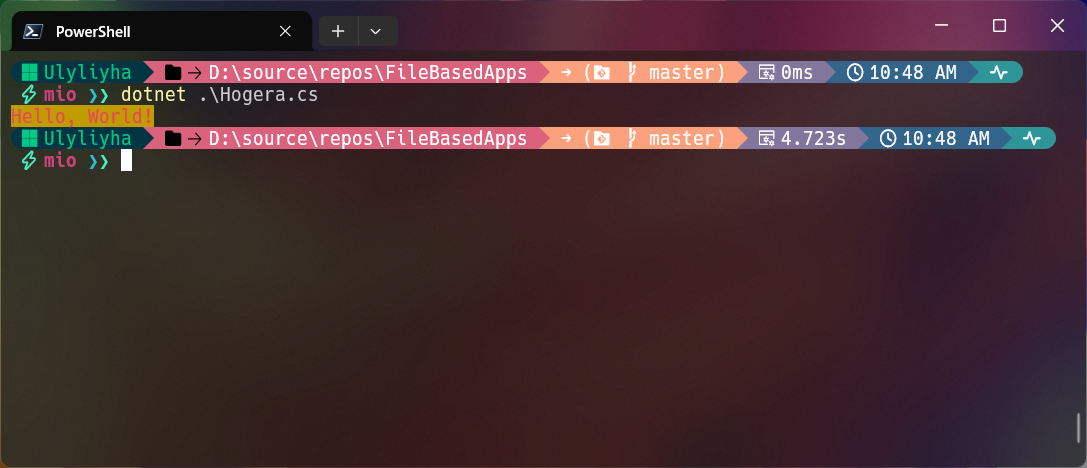
¶ 例. NuGetパッケージで「Kokuban」ライブラリを参照した例
¶ Hogera.cs
#!/usr/bin/env dotnet
#:package Kokuban@0.2.0
using Kokuban;
Console.WriteLine(Chalk.Bold.Red.BgYellow["Hello, World!"]);
使用ライブラリ ライセンス
¶ Kokuban
MIT LicenseCopyright (c) Cysharp, Inc.
Copyright (c) Mayuki Sawatari mayuki@misuzilla.org
Permission is hereby granted, free of charge, to any person obtaining a copy
of this software and associated documentation files (the "Software"), to deal
in the Software without restriction, including without limitation the rights
to use, copy, modify, merge, publish, distribute, sublicense, and/or sell
copies of the Software, and to permit persons to whom the Software is
furnished to do so, subject to the following conditions:
The above copyright notice and this permission notice shall be included in all
copies or substantial portions of the Software.
THE SOFTWARE IS PROVIDED "AS IS", WITHOUT WARRANTY OF ANY KIND, EXPRESS OR
IMPLIED, INCLUDING BUT NOT LIMITED TO THE WARRANTIES OF MERCHANTABILITY,
FITNESS FOR A PARTICULAR PURPOSE AND NONINFRINGEMENT. IN NO EVENT SHALL THE
AUTHORS OR COPYRIGHT HOLDERS BE LIABLE FOR ANY CLAIM, DAMAGES OR OTHER
LIABILITY, WHETHER IN AN ACTION OF CONTRACT, TORT OR OTHERWISE, ARISING FROM,
OUT OF OR IN CONNECTION WITH THE SOFTWARE OR THE USE OR OTHER DEALINGS IN THE
SOFTWARE.
Part of the source code of this library is derived from the following libraries.
The original source codes are licensed under the MIT License.
chalk/supports-color
Copyright (c) Sindre Sorhus sindresorhus@gmail.com (https://sindresorhus.com)
chalk/ansi-styles
Copyright (c) Sindre Sorhus sindresorhus@gmail.com (https://sindresorhus.com)
Qix-/color-convert
Copyright c 2011-2016, Heather Arthur. Copyright c 2016-2021, Josh Junon.
¶ 実行結果
¶ .NET SDK 10.0.100 ~
#:project
#:project ディレクティブを使うと、別のプロジェクト内を全部参照することができます。
Visual Studio や VS Code で作った、C# .NET プロジェクト内のクラス等を、1つのファイルからサクッと呼び出したいときに便利です。
¶ .NET SDK 10.0.100 ~
#:property
#:property ディレクティブを使うと、MSBuild プロパティ値の設定ができます。
¶ 例 1. 各種設定変更
ターゲットフレームワークモニカー (TFM) を net10.0 に、
C#言語バージョンを 14.0 へと、
設定する場合には、次のように記述します。
#:property TargetFramework=net10.0
#:property LangVersion=14.0
なお、File Based Apps では、デフォルトで、ネイティブ AOT (ahead-of-time) コンパイルが有効となっています。
もし、どうしても、ソースジェネレータなしの DllImport や JSONシリアライズ/デシリアライズ や、リフレクション等 を扱いたいとき場面などで ネイティブ AOT (ahead-of-time) コンパイルを OFF にしたいときは、次のように記述します。
#:property PublishAot=false
¶ 例 2. 1ファイルだけで、WinForms デスクトップアプリ
統合開発環境 Visual Studio が無くとも、極論「メモ帳」と「1つのファイル」だけで、
WinForms デスクアプリを作って実行する、なんてことも実際にできてしまいます。
(茨の道ですが)。
¶ Program.cs
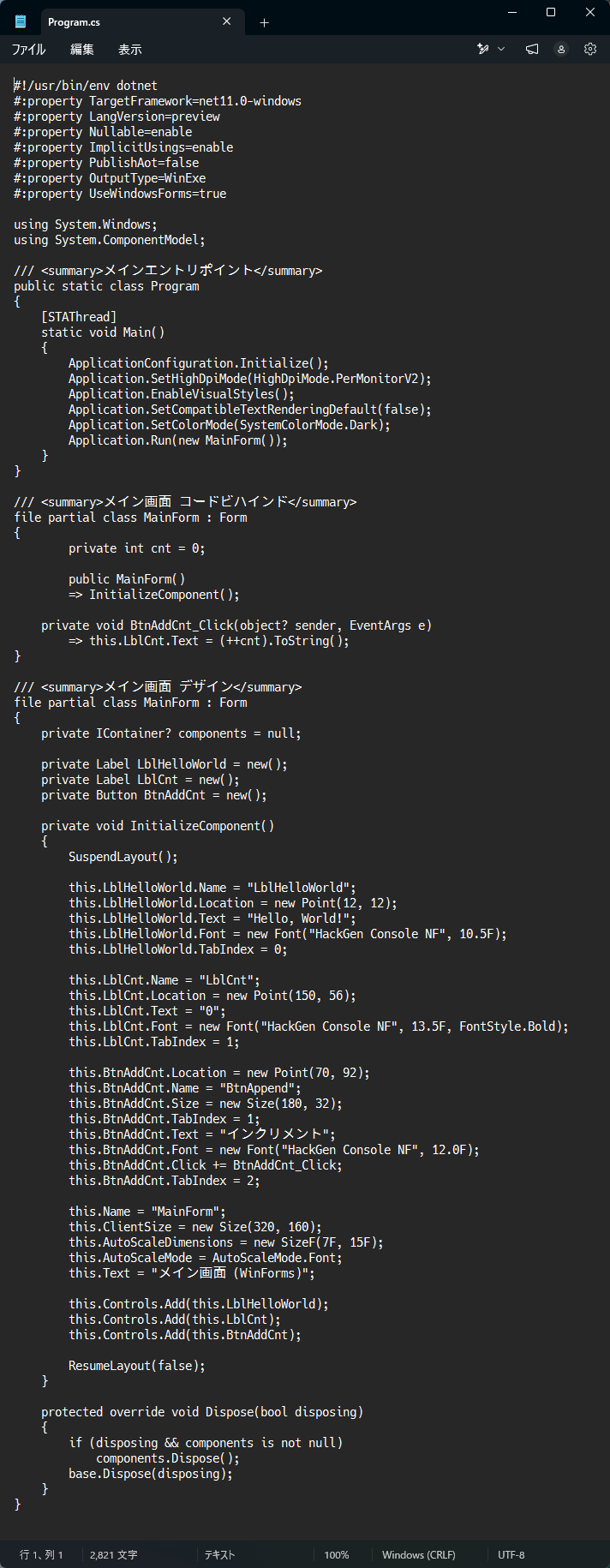
#!/usr/bin/env dotnet
#:property TargetFramework=net11.0-windows
#:property LangVersion=preview
#:property Nullable=enable
#:property ImplicitUsings=enable
#:property PublishAot=false
#:property OutputType=WinExe
#:property UseWindowsForms=true

using System.Windows;
using System.ComponentModel;

/// <summary>メインエントリポイント</summary>
public static class Program
{
    [STAThread]
    static void Main()
    {
        ApplicationConfiguration.Initialize();
        Application.SetHighDpiMode(HighDpiMode.PerMonitorV2);
        Application.EnableVisualStyles();
        Application.SetCompatibleTextRenderingDefault(false);
        Application.SetColorMode(SystemColorMode.Dark);
        Application.Run(new MainForm());
    }
}

/// <summary>メイン画面 コードビハインド</summary>
file partial class MainForm : Form
{
    private int cnt = 0;

    public MainForm()
        => InitializeComponent();

    private void BtnAddCnt_Click(object? sender, EventArgs e)
        => this.LblCnt.Text = (++cnt).ToString();
}

/// <summary>メイン画面 デザイン</summary>
file partial class MainForm : Form
{
    private IContainer? components = null;

    private Label LblHelloWorld = new();
    private Label LblCnt = new();
    private Button BtnAddCnt = new();

    private void InitializeComponent()
    {
        SuspendLayout();

        this.LblHelloWorld.Name = "LblHelloWorld";
        this.LblHelloWorld.Location = new Point(12, 12);
        this.LblHelloWorld.Text = "Hello, World!";
        this.LblHelloWorld.Font = new Font("HackGen Console NF", 10.5F);
        this.LblHelloWorld.TabIndex = 0;

        this.LblCnt.Name = "LblCnt";
        this.LblCnt.Location = new Point(150, 56);
        this.LblCnt.Text = "0";
        this.LblCnt.Font = new Font("HackGen Console NF", 13.5F, FontStyle.Bold);
        this.LblCnt.TabIndex = 1;

        this.BtnAddCnt.Location = new Point(70, 92);
        this.BtnAddCnt.Name = "BtnAppend";
        this.BtnAddCnt.Size = new Size(180, 32);
        this.BtnAddCnt.Text = "インクリメント";
        this.BtnAddCnt.Font = new Font("HackGen Console NF", 12.0F);
        this.BtnAddCnt.Click += BtnAddCnt_Click;
        this.BtnAddCnt.TabIndex = 2;

        this.Name = "MainForm";
        this.ClientSize = new Size(320, 160);
        this.AutoScaleDimensions = new SizeF(7F, 15F);
        this.AutoScaleMode = AutoScaleMode.Font;
        this.Text = "メイン画面 (WinForms)";

        this.Controls.Add(this.LblHelloWorld);
        this.Controls.Add(this.LblCnt);
        this.Controls.Add(this.BtnAddCnt);

        ResumeLayout(false);
    }

    protected override void Dispose(bool disposing)
    {
        if (disposing && components is not null)
            components.Dispose();
        base.Dispose(disposing);
    }
}
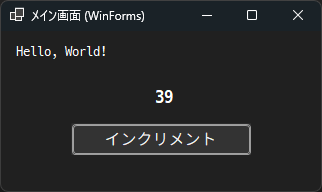
¶ 実行結果

コンパイル済みの実行ファイル (EXE) ではなく、
C#ソースコードを記述した、ただのテキストファイル1個をコマンドからキックしただけですが、
ちゃんと、以下のようにウィンドウが表示され、問題なく動作します。
¶ 例 3. 1ファイルだけで、WinUI 3 デスクトップアプリ
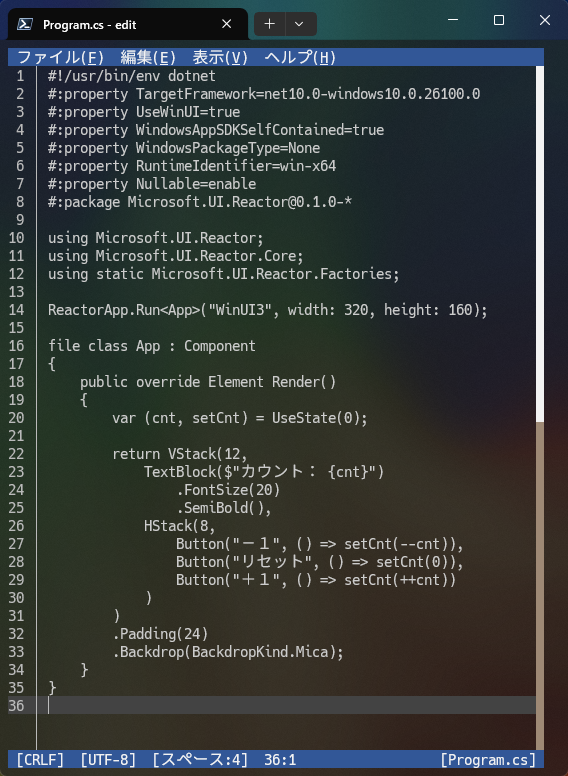
統合開発環境 Visual Studio が無くとも、極論「メモ帳」と「1つのファイル」だけで、
モダンな WinUI 3 デスクアプリを作って実行する、なんてことも可能です。
¶ Program.cs
#!/usr/bin/env dotnet
#:property TargetFramework=net10.0-windows10.0.26100.0
#:property UseWinUI=true
#:property WindowsAppSDKSelfContained=true
#:property WindowsPackageType=None
#:property RuntimeIdentifier=win-x64
#:property Nullable=enable
#:package Microsoft.UI.Reactor@0.1.0-*

using Microsoft.UI.Reactor;
using Microsoft.UI.Reactor.Core;
using static Microsoft.UI.Reactor.Factories;

ReactorApp.Run<App>("WinUI3", width: 320, height: 160);

file class App : Component
{
    public override Element Render()
    {
        var (cnt, setCnt) = UseState(0);

        return VStack(12,
            TextBlock($"カウント: {cnt}")
                .FontSize(20)
                .SemiBold(),
            HStack(8,
                Button("-1", () => setCnt(--cnt)),
                Button("リセット", () => setCnt(0)),
                Button("+1", () => setCnt(++cnt))
            )
        )
    	  .Padding(24)
    	  .Backdrop(BackdropKind.Mica);
    }
}
使用ライブラリ ライセンス
¶ Microsoft.UI.Reactor
MIT LicenseCopyright (c) Microsoft Corporation.
Permission is hereby granted, free of charge, to any person obtaining a copy
of this software and associated documentation files (the "Software"), to deal
in the Software without restriction, including without limitation the rights
to use, copy, modify, merge, publish, distribute, sublicense, and/or sell
copies of the Software, and to permit persons to whom the Software is
furnished to do so, subject to the following conditions:
The above copyright notice and this permission notice shall be included in all
copies or substantial portions of the Software.
THE SOFTWARE IS PROVIDED "AS IS", WITHOUT WARRANTY OF ANY KIND, EXPRESS OR
IMPLIED, INCLUDING BUT NOT LIMITED TO THE WARRANTIES OF MERCHANTABILITY,
FITNESS FOR A PARTICULAR PURPOSE AND NONINFRINGEMENT. IN NO EVENT SHALL THE
AUTHORS OR COPYRIGHT HOLDERS BE LIABLE FOR ANY CLAIM, DAMAGES OR OTHER
LIABILITY, WHETHER IN AN ACTION OF CONTRACT, TORT OR OTHERWISE, ARISING FROM,
OUT OF OR IN CONNECTION WITH THE SOFTWARE OR THE USE OR OTHER DEALINGS IN THE
SOFTWARE
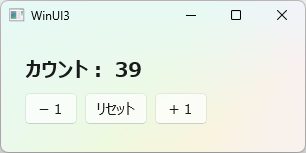
¶ 実行結果
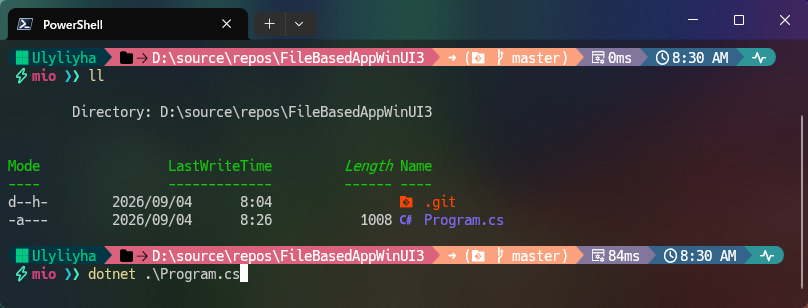
コンパイル済みの実行ファイル (EXE) ではなく、
C#ソースコードを記述した、ただのテキストファイル1個をコマンドからキックしただけですが、
ちゃんと、以下のようにウィンドウが表示され、問題なく動作します。
¶ 例 4. 1ファイルだけで、WebAPI (サーバ側)
これまた Visual Studio や VS Code が無くとも、
極論、ただの「テキストエディタ」と「1つのファイル」だけで、
ASP.NET Core で WebAPI を作って実行する、なんてことも実際にできてしまいます。
また、別に Windows でなくとも、Linux 上でも可能です。
¶ Program.cs
$> touch Program.cs
$> vi Program.cs
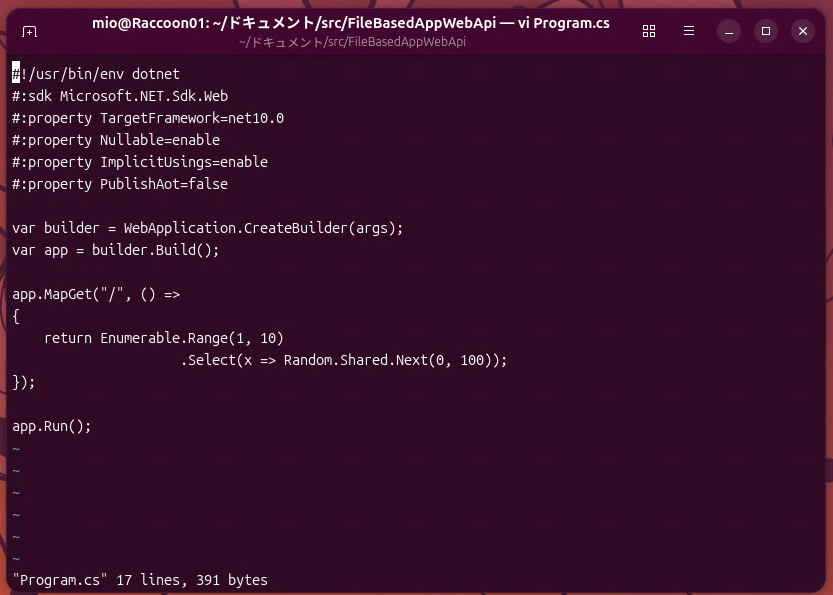
#!/usr/bin/env dotnet
#:sdk Microsoft.NET.Sdk.Web
#:property TargetFramework=net10.0
#:property Nullable=enable
#:property ImplicitUsings=enable
#:property PublishAot=false

var builder = WebApplication.CreateBuilder(args);
var app = builder.Build();

app.MapGet("/", () =>
{
    return Enumerable
        .Range(1, 10)
        .Select(x => Random.Shared.Next(0, 100));
});

app.Run();
¶ 実行結果
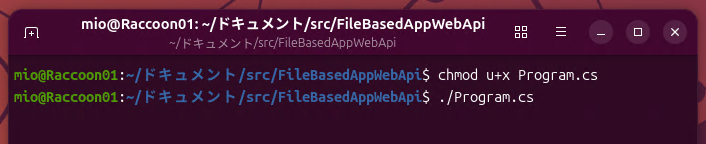
実行権限を与えてから、直接実行します。
$> chmod u+x Program.cs

$> ./Program.cs
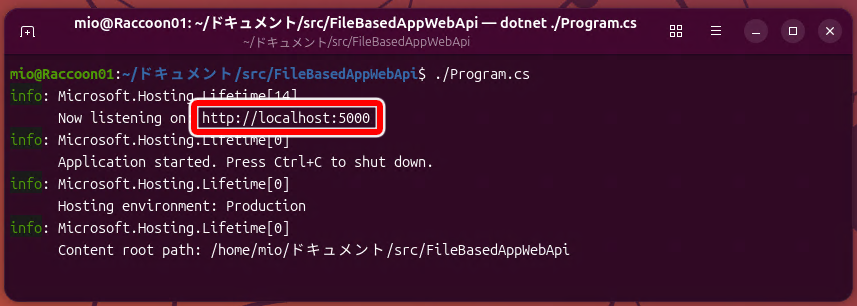
キックすると、.ASP.NET Core の Webアプリ が起動し、
WebAPI サーバが 稼働中 となります。
WebAPI サーバの エンドポイント へと、Get メソッド 経由でアクセスしてみると、
下図のように、ランダムな数値 10個からなる JSON データが返ってくることを確認できます。
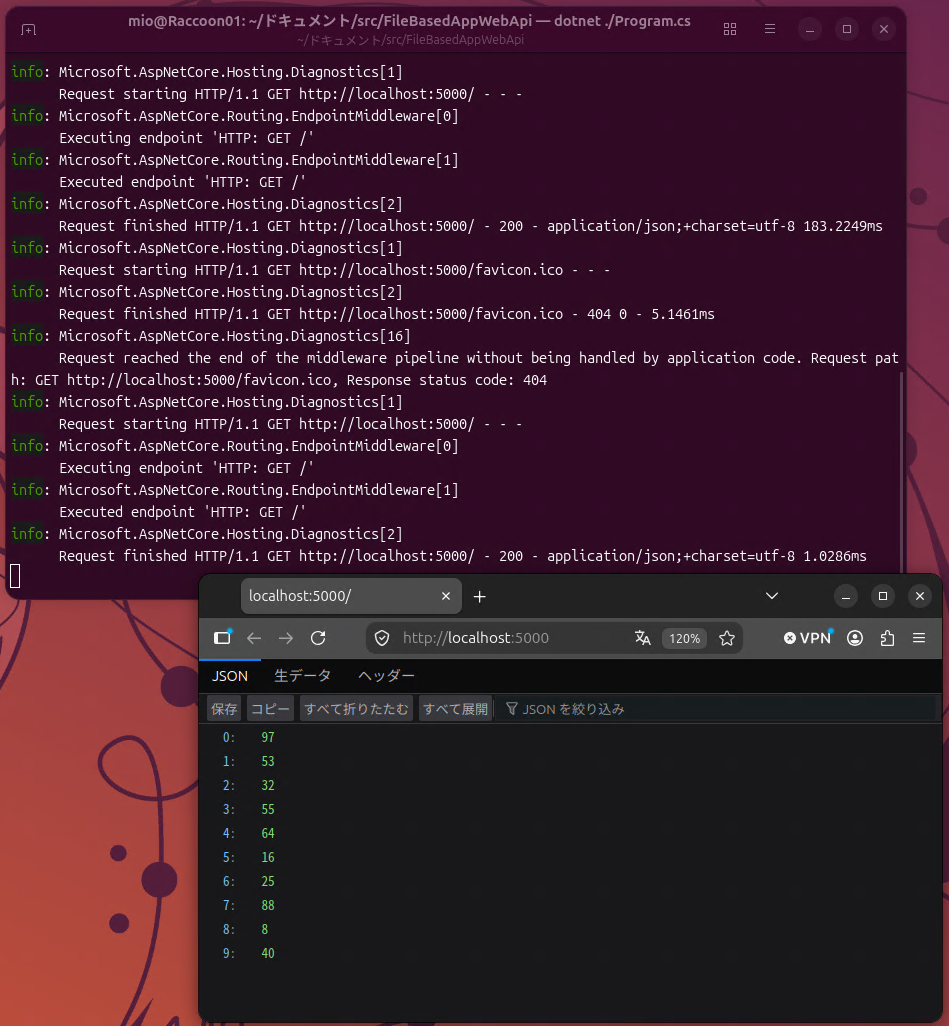
このように、たった 18 行 からなる C# ソースコード を記述した、ただの単一テキストファイルだけで、
WebAPI サーバアプリの 作成 から サーバ稼働 までを、容易に行うことができます。
¶ .NET Web SDK 10.0.100 ~
#:sdk
使用する SDK を指定できます。
デフォルト値は Microsoft.NET.Sdk です。
¶ 例. ASP.NET Core Web SDK を使う場合
#:sdk Microsoft.NET.Sdk.Web
¶ 一覧
#:sdk ディレクティブへと、指定が可能な SDK は、以下の通りです。
| #:sdk | 種別 |
|---|---|
Microsoft.NET.Sdk |
.NET (Core) 基盤 |
Microsoft.NET.Sdk.Web |
ASP.NET Core の Web フレームワーク |
Microsoft.NET.Sdk.Razor |
ASP.NET Core の Razor フレームワーク |
Microsoft.NET.Sdk.BlazorWebAssembly |
ASP.NET Core の Blazor WebAssembly フレームワーク |
Microsoft.NET.Sdk.Worker |
.NET Worker Service フレームワーク |
Aspire.AppHost.Sdk |
Aspire 基盤 |
MSTest.Sdk |
MSTest テスト用フレームワーク |